There are three ways to provide spelling tests, practice, and games to students: Simple Assignment Mode, Advanced Assignment Mode, and Adaptive Learning Programs. Simple Assignment Mode is the default.
Jump to:
- Simple Assignment Mode
- Advanced Assignment Mode
- Adaptive Learning Programs
- Sending Tests, Practice and Games to Students
- Example: How to set up a weekly pre-test, practice/games, and main test using Advanced Assignment Mode
Simple Assignment Mode
In this mode, you simply make Word Lists and send your students the Classroom Link and their Student Code. Every Student automatically gets every Word List that you create, for both Practice and Test, with no expiration date. When your students open the Classroom Link, they will see all of their Word Lists, and can choose which one to practice or take the test. The system takes care of the rest.
When you first create an account, this is the mode you start in.

Advanced Assignment Mode
In this mode, you can create custom assignments with specific dates and student/group targeting. For example, you can create Assignments that have a Practice test on Monday and a Test on Friday for a given Word List and a specific group of students, for every week of the school year. It’s incredibly powerful.
To use Advanced Assignment Mode, you must first switch to it from within the Assignments page:

Now that you’ve switched it, you can create Assignments for your students.
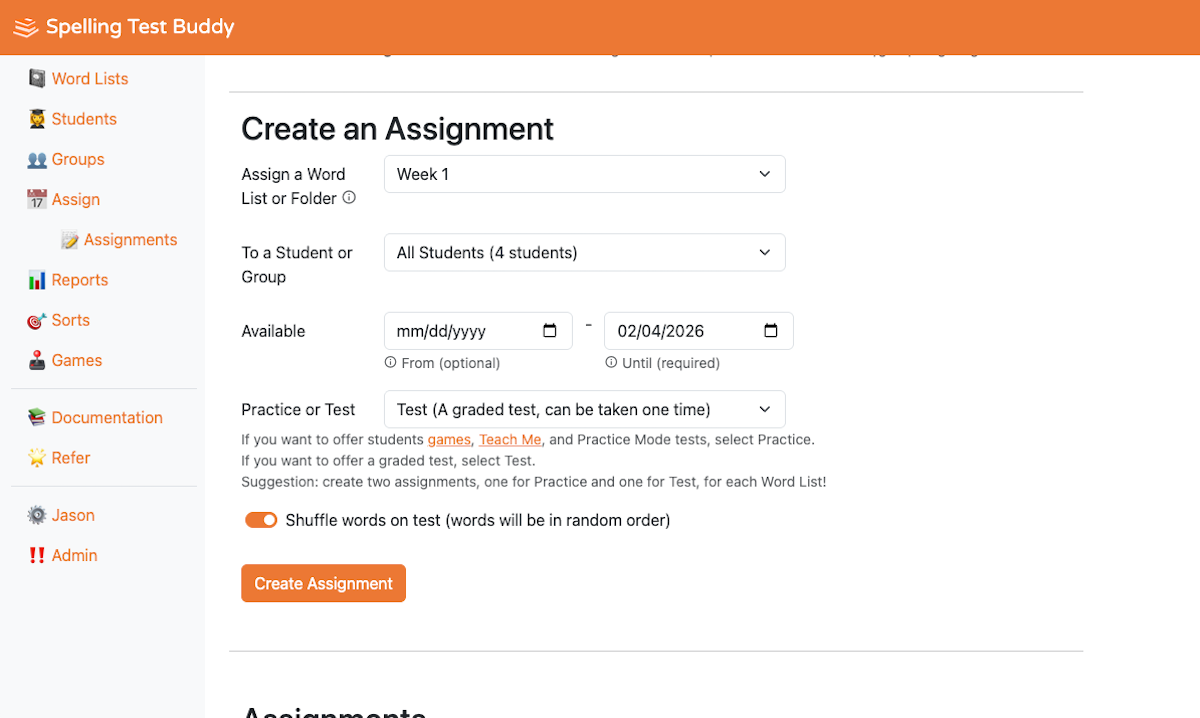
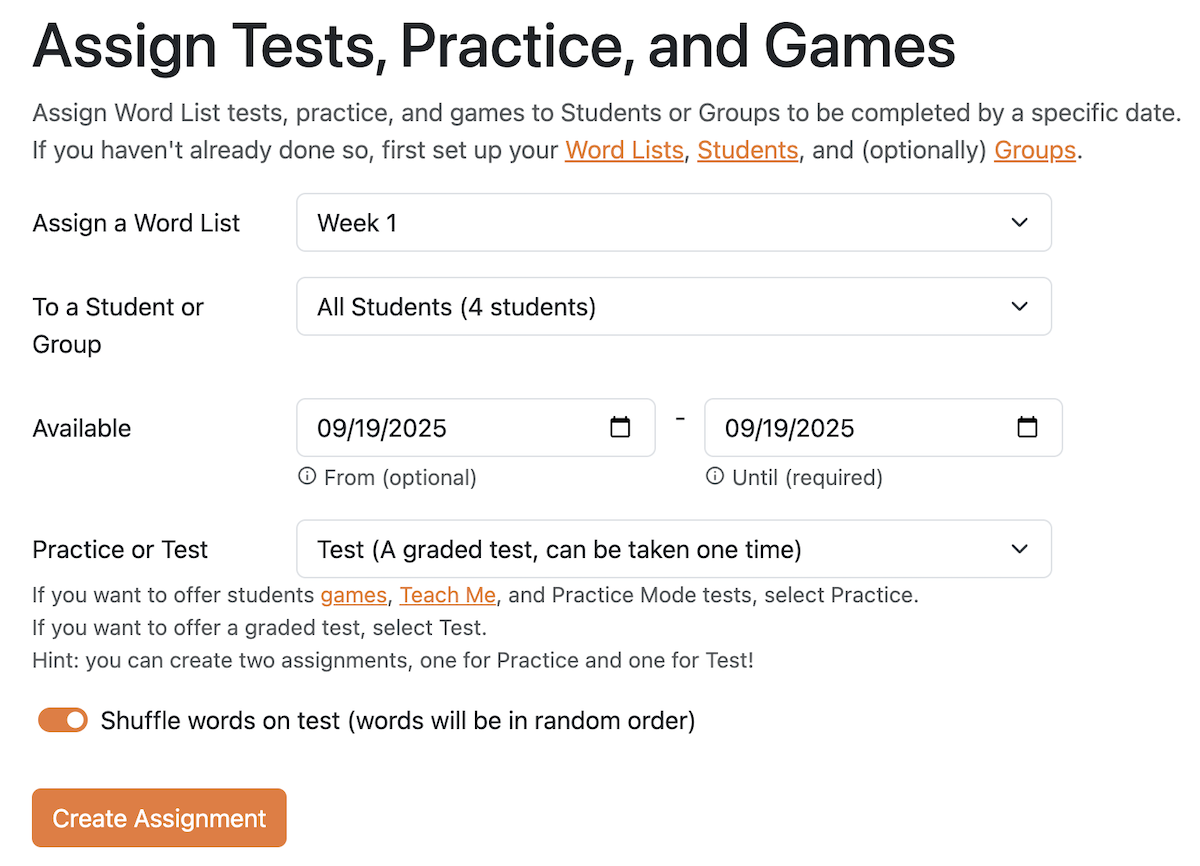
First, pick the Word List or Folder you want to assign. Folders will only appear if you have created a folder.
Then, pick the Student or Group to which you want to assign the practice/test. You can also pick All Students to assign to every student in your student list.
Then, set the Available Until date. After this date, the practice/test will no longer be available to students. Think of this as the end of the availability window for this assignment.
You can also set the Available From date. The practice/test will appear for students on this date. Think of this as the start of the availability window for this assignment.
If you want your students to practice with the Teach Me feature, Games, and be able to take practice tests, choose Practice (Teach Me, Games, and Practice Mode test) from the dropdown. If you want to assign a test-mode test, where they can only submit a single resut, choose Test (a graded test, can be taken only one time) from the dropdown. Note: if you want your students to be able to both practice and take the test, you will need to create two assignments, one for Practice mode and one for Test mode.
For Shuffle words, choose whether you want the list to shuffle/randomize the words when the student takes the test.
When finished, tap on Create Assignment.
Notes:
- If you assign a folder, then change the word lists that are in that folder, your students will see the latest changes when they open their list of assignments.
- Similarly, if you assign to a group or to All Students, then change the students, the assignment will automatically be available to the most recent list of students.
- If you want your students to be able to both practice and take the test, you will need to create two assignments, one for Practice mode and one for Test mode.
- Currently, Digital Sorts are independent of Practice or Tests. Those need to be distributed directly to students
Adaptive Learning Programs
Adaptive Learning Programs are the third, most powerful mode of assigning work to students. Instead of assigning a single word list for a set window of time, you create a long-running program — a continuous practice track — and the platform builds a personalized daily session for each student automatically, based on what that student actually needs right now.
Every session is driven by spaced repetition: words a student has clearly mastered fade into longer review intervals, words they have missed come back sooner, and brand-new words are introduced at a steady pace. No two students in the same classroom see the same session. Learn more about how the underlying algorithm works in Introducing Adaptive Learning Programs. Learn more about Spaced Repetition.
Setting up an Adaptive Learning Program
Go to Adaptive Learning in the left sidebar and click New Program. A four-step wizard walks you through the setup:
- Key Decisions — Give the program a name, set a go-live date, choose how many words each student receives per day (10–35), and pick the student experience:
- Practice + Test — students get a full session: an initial test, access to Teach Me and Games, then a final test.
- Test Only — students get a single personalized test, no practice section.
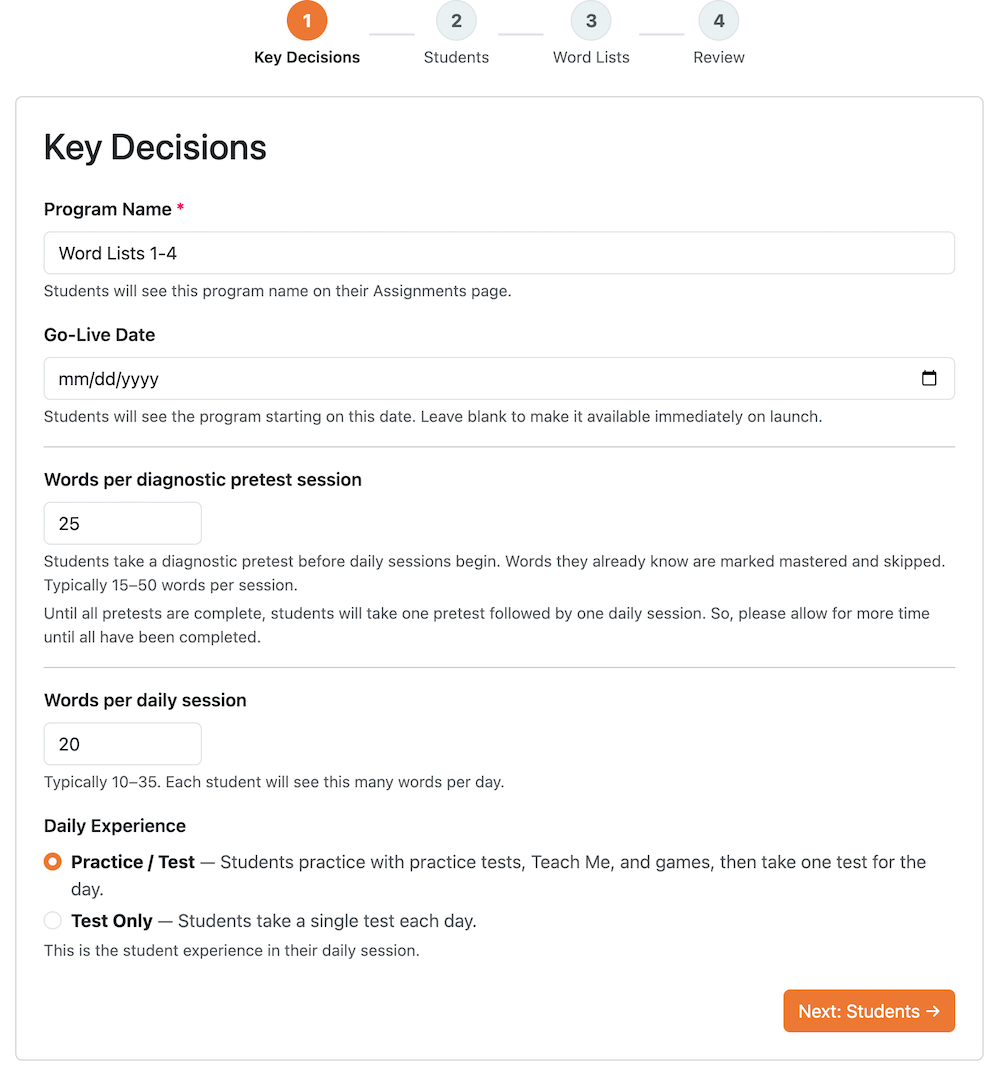
Students — Choose which students or groups are in this program. You can add or remove students later without losing any results.
Word Lists — Choose the word lists (or folders) that make up the program’s word pool. Picking a folder captures the wordlists in it at the moment you save; if you add lists to the folder later, you can add them to the program explicitly.
Review & Launch — Confirm your settings and click Launch Program. The program goes live on the go-live date you set. You can save a draft at any step and come back to it.
Sending Tests, Practice and Games to Students
Now, it’s time to send the test to those assigned students.
Your student only needs two things to access the test:
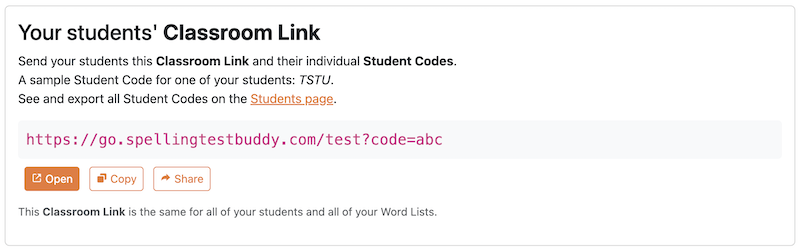
- Your Classroom Link, as shown in the image below.
- Their individual Student Code, that was set when you created their student record. You can find and export them on the Students page.
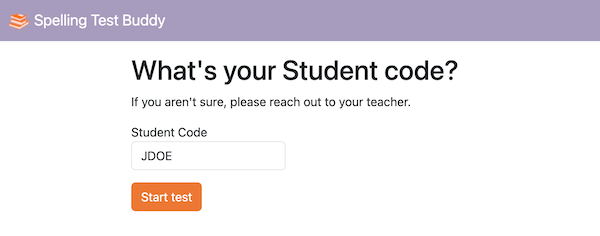
When your students open the link, they will be asked to enter their student code.
Their browser will remember their student code after the first time they enter it.
They’ll be taken to the Upcoming Assignments page. This page will show Adaptive Learning Programs as well as traditional assignments that they need to work on:
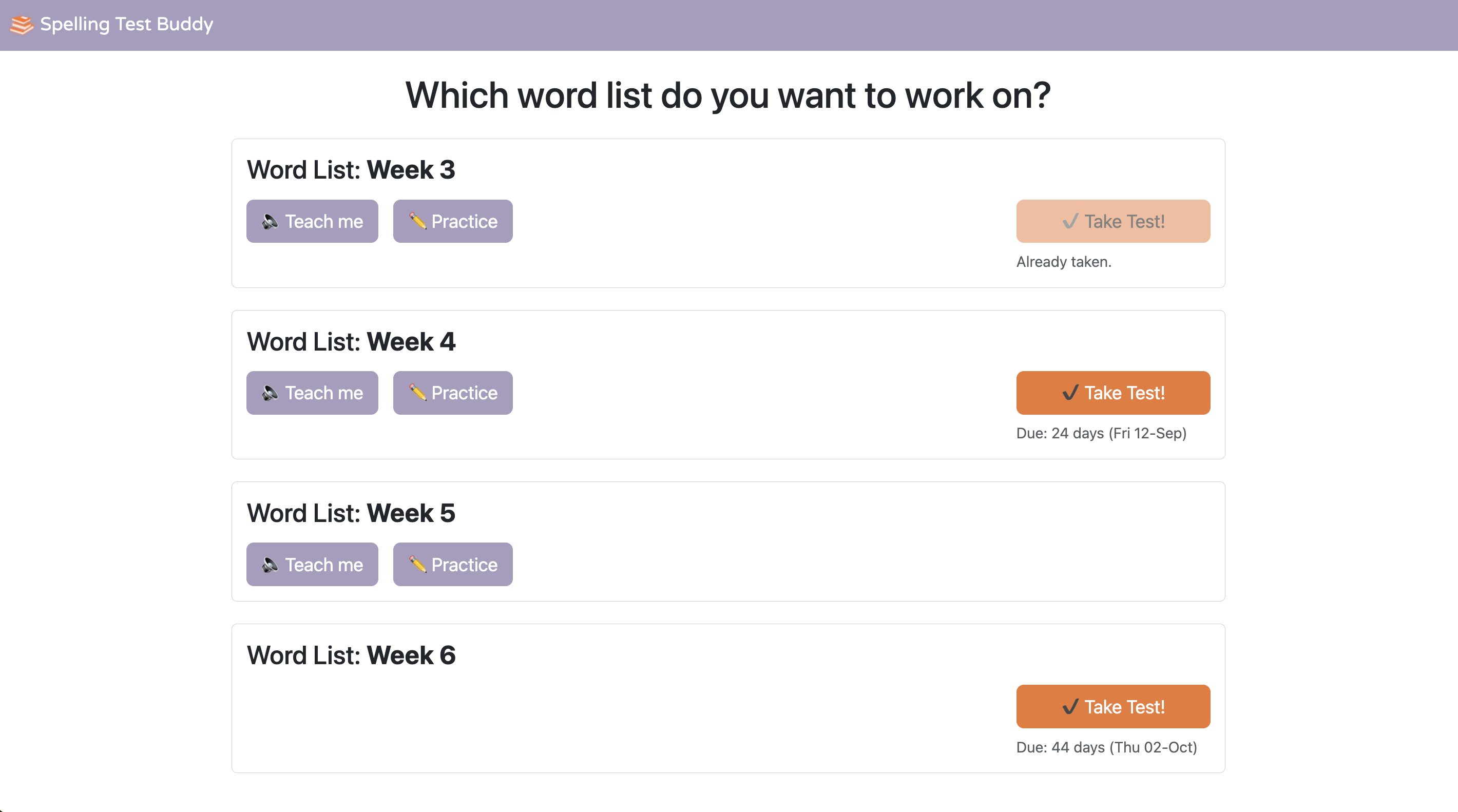
They can then take their test…

…and see their results immediately!
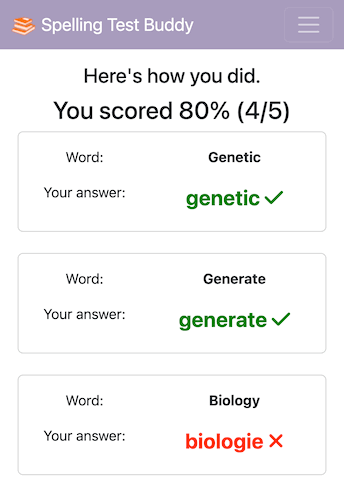
Read more about The Student Experience here.
Example: How to set up a weekly pre-test, practice/games, and main test using Advanced Assignment Mode
Let’s say you want to set up the following schedule for each week:
- Provide a pre-test to your students on Monday
- Allow them to practice with spelling tests and games as much as they want on Tuesday, Wednesday, and Thursday, and
- Provide the main test on Friday
and you want to do this for 20 spelling tests this school year, all in advance.
You can do this easily with Spelling Test Buddy! Here’s how you set it up.
First, switch to Advanced Assignment Mode in Assignments.
Second, create the Pre-test Assignment on Monday in :
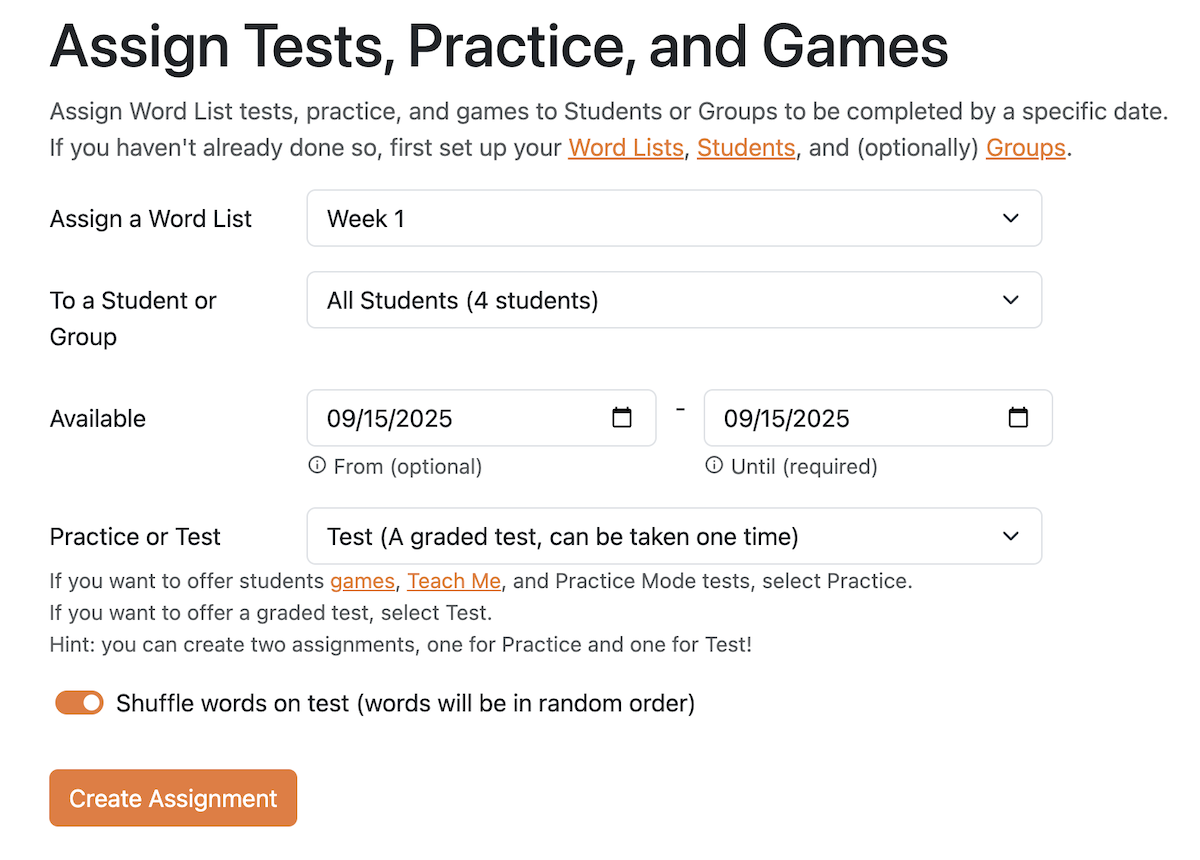
Third, create the Practice Assignment for Tuesday to Thursday:
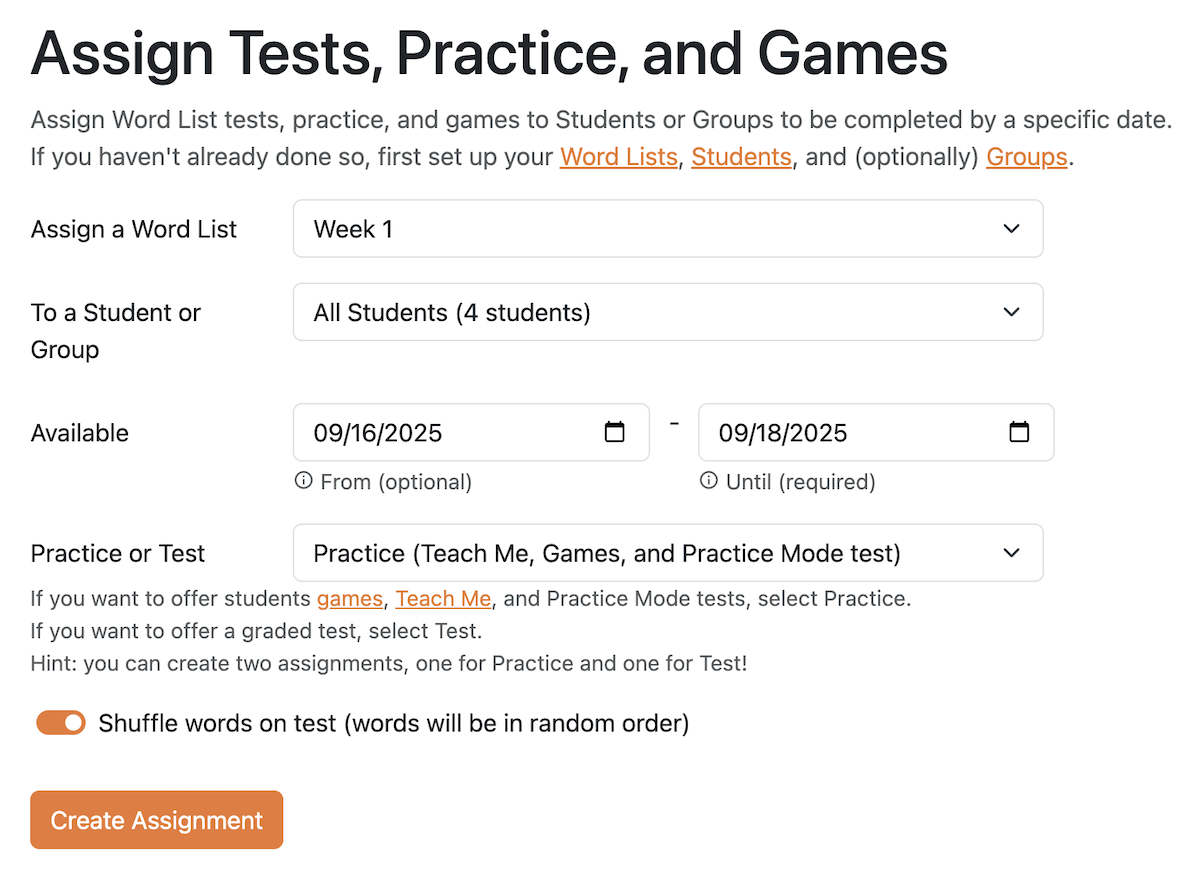
Fourth, create the Main Test Assignment on Friday:
Repeat this structure for all 20 weeks, but just change the Word List and dates for Available From and Available Until.
You can even set this up for groups of students too, and truly differentiate across levels.
And that’s it! The system will automatically show and hide tests for each student.